

How do I track teams live?
Before you start
Section titled “Before you start”- The event must be running
- Go to the Events list.
- Find your event in the list and click the Track button on the event row. This opens the live tracking dashboard.
What you see
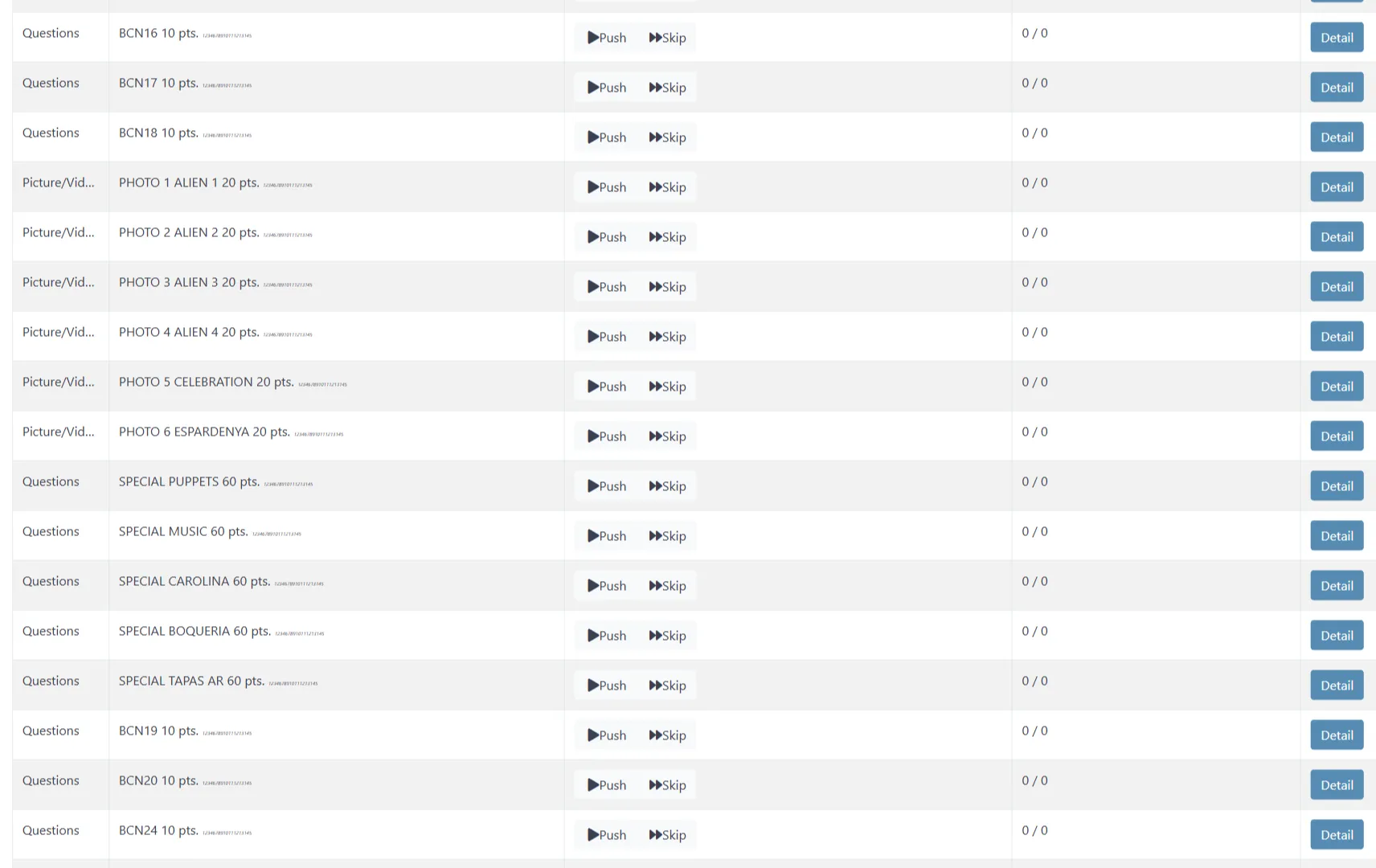
Section titled “What you see”The tracker shows every challenge in your event with real-time completion data:
| Information | What it tells you |
|---|---|
| Challenge list | Every challenge with its type and point value |
| Completion ratio | How many teams finished each challenge (e.g., “3 / 10”) |
| Teams pending | How many teams still have not attempted each challenge |
| Per-team stats | Distance traveled, challenges completed, time elapsed |
Filter the view
Section titled “Filter the view”Use the tabs at the top to filter:
- All tracker — see everything
- Word — only word/text challenges
- Power Scoring — manual scoring interface for photo and free-text challenges
Segment tracking
Section titled “Segment tracking”If your event uses segments, the segment tracking view shows which segment each team is currently in. You can manually reassign a team to a different segment if they are stuck.
Show results on a screen
Section titled “Show results on a screen”For live events at a venue, share these public displays (no login required):
- Control Panel — live leaderboard on a projector or TV
- Photo Slideshow — cycling display of submitted photos
Click Suspend Scoring to hide the leaderboard before the final reveal. Results keep accumulating — they just stay hidden until you turn scoring back on.
Related pages
Section titled “Related pages”- Live Control Reference — Full details on tracking, Push/Skip, and mid-event operations
- How to score photo challenges — Manual scoring during or after the event
- Run Your First Event (Guide) — Complete walkthrough of running a live event