

How do I create an event?
- Click Events in the top bar.
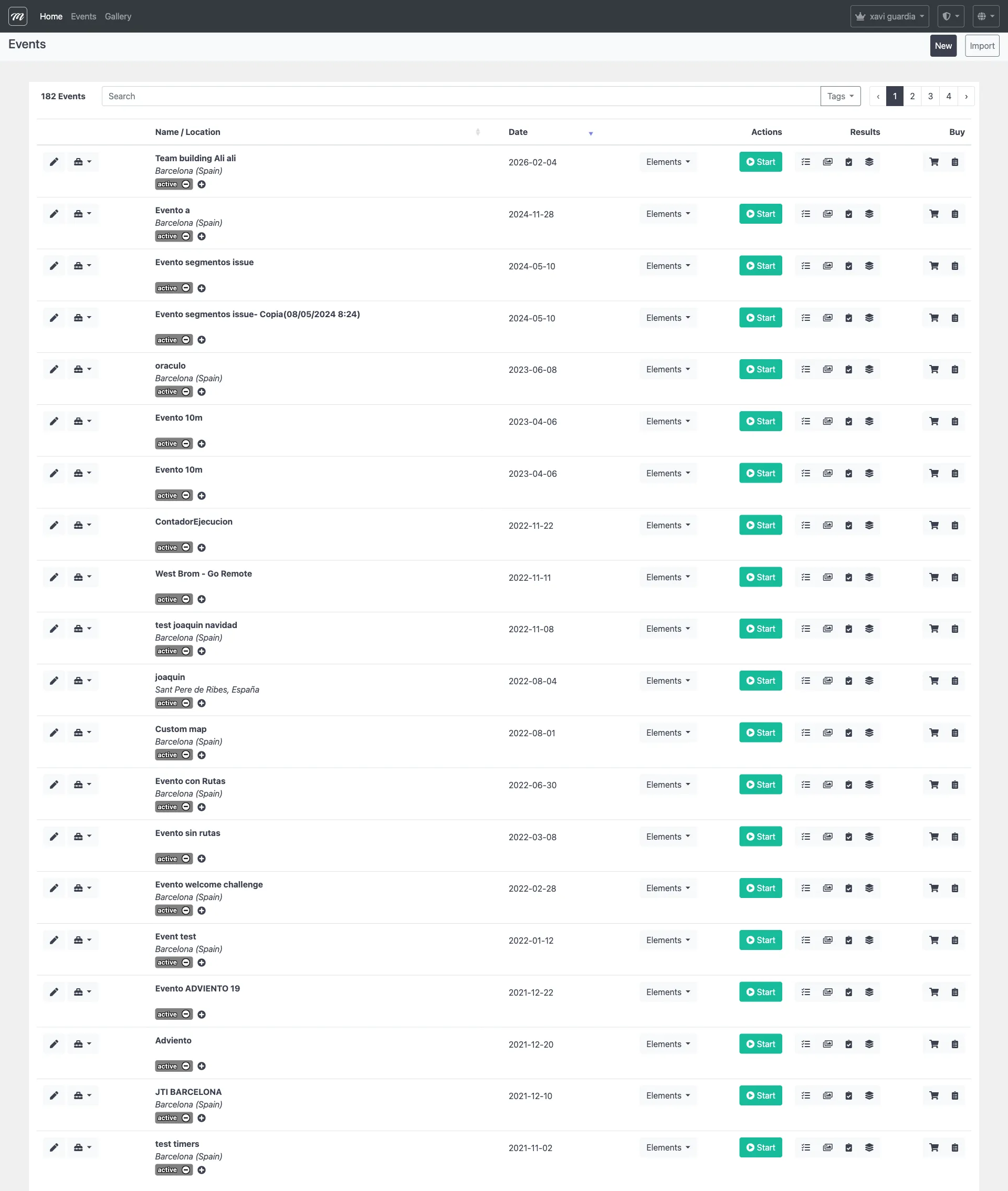
- Click the new page icon above the events table.
- Fill in the required fields:
| Field | What to enter |
|---|---|
| Name | The event name (visible to participants) |
| Number of Teams | Maximum number of teams |
| Duration | How many days the event stays open (minimum 3, maximum 120, default 15) |
| Location | Type an address or click the map |
| Theme | Visual style for the player app (Default, Christmas, Pirates, Halloween) |

- Click Save.
You are on the Event Edit page with 10 tabs. Configure the gameplay options in the Event tab:
| Option | What it does |
|---|---|
| Allow players to click map icons | Players can tap a challenge on the map without walking to it |
| Enable custom point labelling | Allows custom text on challenge map pins instead of default icons |
| Display rankings exclusively for the active segment | Hides the overall leaderboard, shows only the active segment ranking |
| Hide chat icon on app | Removes the in-app team chat button |
| Background color | Background color for the app (hex value) |
Result
Section titled “Result”The event is created but not active — it needs teams, challenges, and routes before it can be started.
If something goes wrong: If the save fails, check that all required fields are filled. Name and Number of Teams cannot be empty.
For the full setup walkthrough, see Create Your First Event. For field-level detail, see the Events reference.